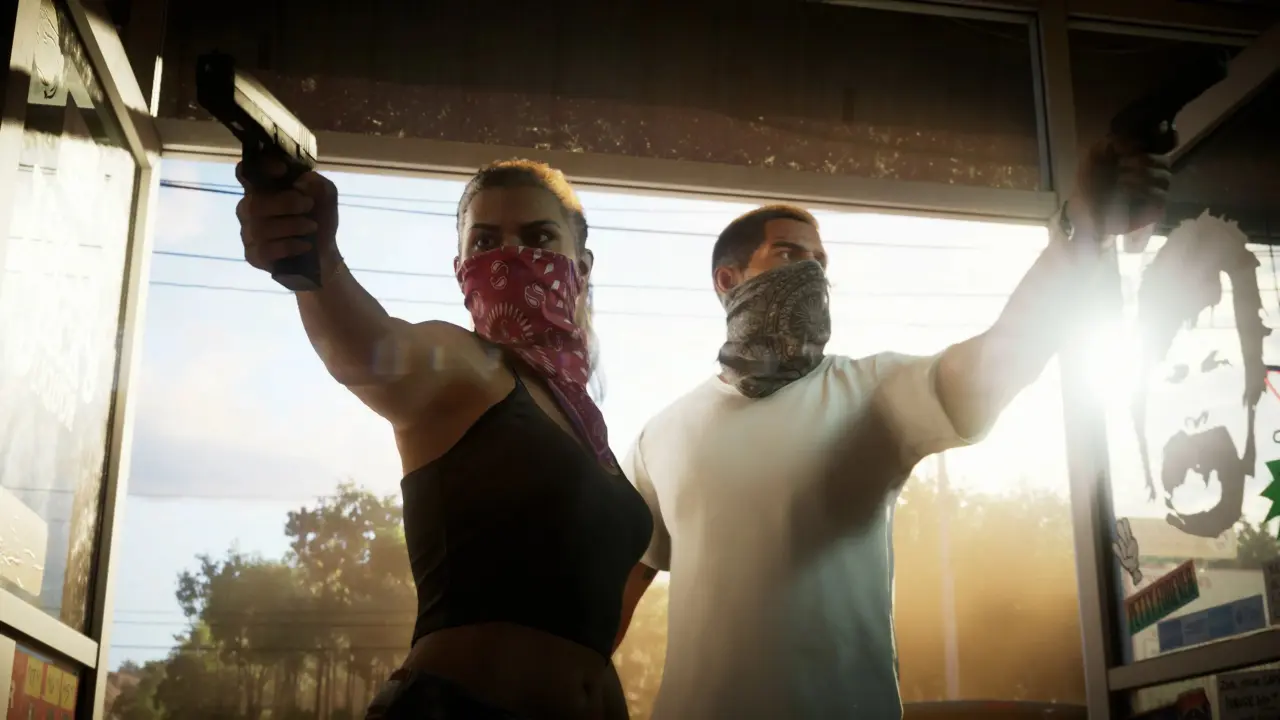
A Grand Theft Auto 6 warning has been revealed for players who don't set one HDR TV option correctly. This GTA 6 setting is crucial as it ensures your TV isn't trying to apply its own tone mapping, which interferes with the game's in-built brightness adjustments. If you don't do it, then you'll find in-game sliders don't work, and it will look flat.
Enable HGiG to bypass TV tone mapping and restore GTA 6 brightness calibration
The issue comes with how HDR is handled from the game console / PC and the TV. A lot of the time, TVs will add another layer of tone mapping to the incoming signal, which messes up the calibration Rockstar Games has applied to the game. With HGiG switched on, the onus is on the game engine to present HDR and it will have full control.
HGiG is short for HDR Gaming Interest Group, and it's usually found in your Screen / Brightness menus. It's often labelled as HDR Tone Mapping and is only present when the Game Mode is on your TV. Switch this off and it will let the signal pass through without any meddling.
Once you have HGiG on, you'll need to re-calibrate everything. You'll want to tweak the HDR and brightness in the console settings and then the game settings. This double adjustment is to ensure you get the right look at the end. If you do this, then you'll get the proper contrast and colour depth for the best experience.
Source: VideoGameChronicles
Discussion
0 comments