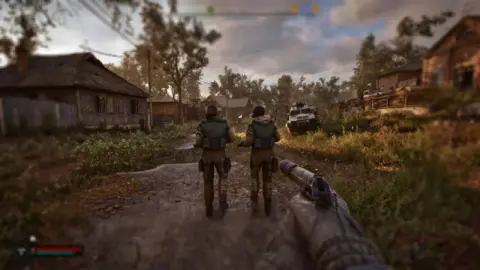
Microsoft released Halo: Campaign Evolved for Premium Edition pre-orders, but players on PC are immediately facing configuration headaches. The game ships with visual filters and input behaviors that many users find distracting, and there is no in-game menu to turn them off. This forces players to manually edit system files to get a standard gaming experience.
Workaround for Chromatic Aberration and Mouse Smoothing
The title enables Chromatic Aberration, Film Grain, and Mouse Smoothing by default. These options persist across the entire campaign without a toggle switch in the settings menu. Players who prefer clean visuals or precise mouse control must intervene directly in the game's configuration files to change these behaviors.
You can resolve these issues by creating a custom Engine.ini file in the game directory. The file requires specific command lines to disable the unwanted effects. You must set r.FilmGrain to 0 and r.Tonemapper.GrainQuantization to 0 to remove the film grain effect. Setting r.SceneColorFringeQuality to 0 disables the chromatic aberration. You also need to set bEnableMouseSmoothing to False and bDisableMouseAcceleration to True under the InputSettings section to fix the mouse behavior.
Performance varies significantly depending on your hardware. The game runs well on high-end systems like the NVIDIA GeForce RTX 5090 at native 4K resolution. Frame pacing appears stable on the author's test machine, showing a constant 33.33ms line without stutters. However, other users report frame pacing issues that the author could not reproduce. Traversal stutters also occur when the game loads new areas, regardless of the hardware.
We looked at the last Halo: Campaign Evolved update earlier while tracking stability themes across the platform. The current release adds new visual layers but removes user control over basic display settings. Players must edit text files to restore standard input and visual expectations before playing.